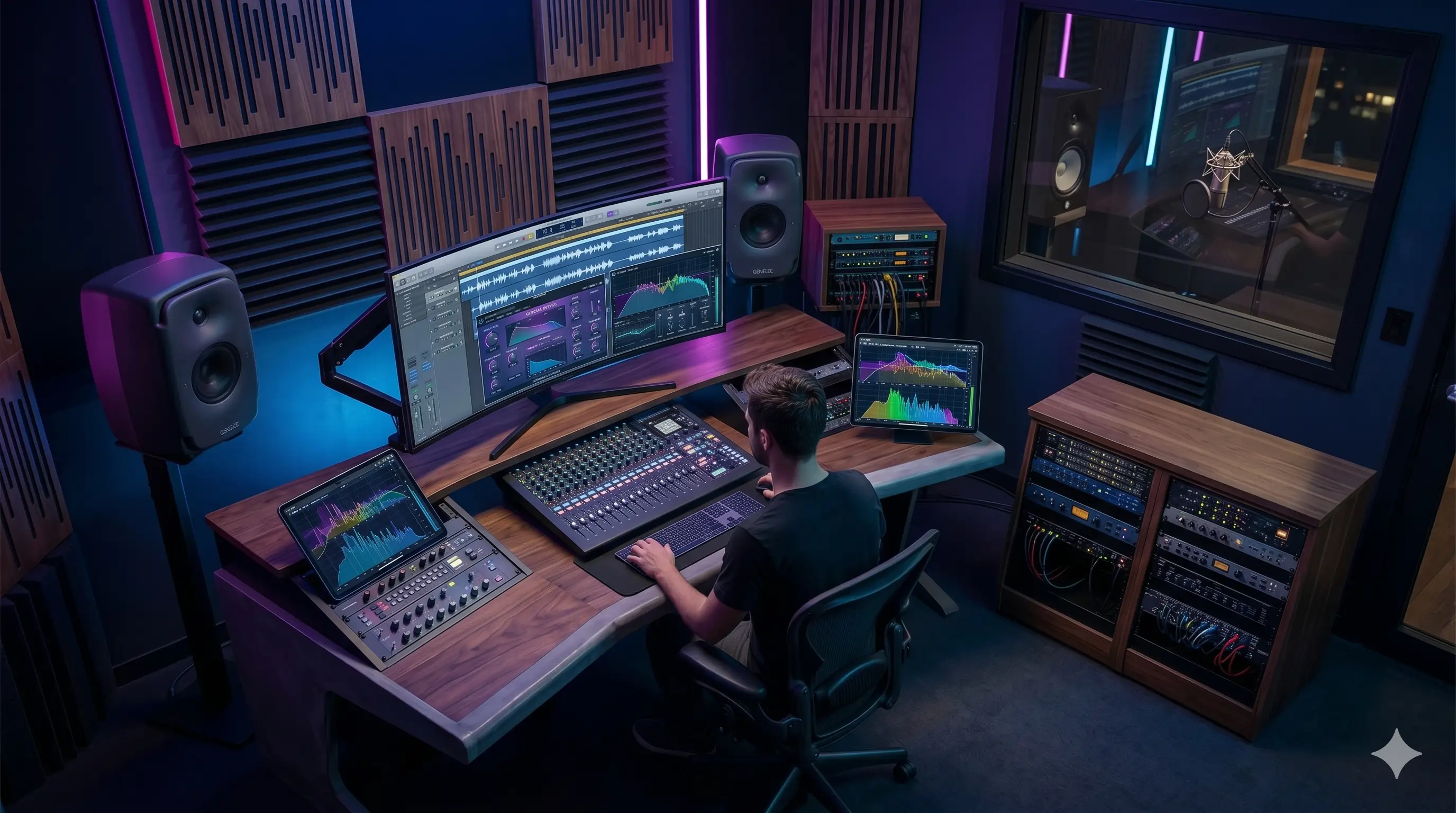
Add Reverb to Audio Online Without a DAW
Data engineer who loves building high-performance data and web-related tools. Creator of SlowedReverbMaker.net, implementing browser-side digital signal processing (DSP) to democratize audio editing.
Test these settings while you read
Use our free slowed reverb generator to test these settings on your own song.
1. Introduction: The DAW-Free Audio Revolution
Adding professional-quality reverb to audio has traditionally required a Digital Audio Workstation (DAW) — software like Ableton Live, FL Studio, or Logic Pro. These tools are powerful, but they come with significant barriers that exclude a large portion of potential creators. The rise of browser-based audio processing has fundamentally changed this landscape, making studio-quality effects accessible to anyone with a web browser.
This guide provides a comprehensive examination of the DAW-free approach to audio reverb. We will compare costs, analyze the underlying technology (the Web Audio API), benchmark quality against professional DAWs, provide step-by-step workflows for multiple use cases, and equip you with everything you need to produce professional reverb effects without installing a single piece of software.
Whether you are a podcaster needing vocal polish, a social media creator looking for atmospheric sound, or a musician experimenting with new textures, browser-based reverb processing can meet your needs — often faster and more conveniently than a traditional DAW.
2. The Cost Barrier: DAW Pricing Comparison
The financial barrier to entry for professional audio processing is substantial. Here is a comparison of current pricing for major DAWs and their entry-level requirements:
Ableton Live 12 Intro: $79 (limited: 16 audio tracks, 8 instruments). Ableton Live 12 Standard: $449. Ableton Live 12 Suite: $749 (full feature set). Ableton Live requires a computer with at least 8GB RAM, a multi-core processor, and significant storage for sample libraries.
FL Studio Fruity Edition: $99 (limited: no audio recording, no external plugin support). FL Studio Producer Edition: $199 (full audio recording and plugin support). FL Studio Signature Bundle: $299 (includes all native plugins). FL Studio All Plugins Edition: $499.
Logic Pro: $199 (Mac only, one-time purchase). Best value among premium DAWs, but requires a Mac computer (minimum $999 entry point).
Pro Tools Artist: $99/year subscription. Pro Tools Studio: $299/year. Pro Tools Flex: $599/year. Subscription-based pricing means ongoing costs never end.
In contrast, browser-based tools like SlowedReverbMaker.net are free or available at minimal cost. There is no hardware requirement beyond any device that runs a modern browser (including smartphones and tablets). The total cost of entry for browser-based reverb processing: $0.
For creators who process audio occasionally or for specific projects, the economic argument for browser-based tools is overwhelming. The cost of a single DAW license could fund years of cloud-based processing subscriptions — or be saved entirely by using free browser tools.
- Ableton Live: $79-$749. Logic Pro: $199 (Mac only). FL Studio: $99-$499. Pro Tools: $99-$599/year.
- Browser-based reverb processing: $0. No hardware upgrade needed.
- DAW learning curve: 20-100 hours basic proficiency. Browser tools: under 5 minutes.
- For occasional use, browser processing is economically superior by any measure.
3. The Learning Curve: DAW vs Browser Processing Time
Beyond cost, the time investment required to achieve basic proficiency with a DAW is a significant barrier. Survey data from audio education platforms indicates that the average new DAW user requires 20-40 hours of learning to achieve basic proficiency (loading audio, applying effects, exporting). Advanced proficiency (routing, automation, bus processing) requires 100-200+ hours.
Browser-based reverb tools eliminate this learning curve entirely. The typical workflow involves three steps: upload audio, adjust parameters (wet/dry mix, decay time), and export. The entire process takes under two minutes for a first-time user. For comparison, applying equivalent reverb in a DAW requires: creating a new project, importing audio, creating an audio track, loading a reverb plugin (and potentially purchasing one), configuring the plugin parameters, routing the audio to the reverb bus, setting levels, and exporting the mix.
The learning curve difference is not just about initial time investment but about ongoing efficiency. A content creator using browser tools can process 10-20 tracks per hour. The same creator using a DAW might process 3-5 tracks per hour after achieving proficiency. For high-volume content production, browser tools are objectively more efficient.
This does not mean DAWs are obsolete — they remain essential for multi-track recording, MIDI sequencing, and complex production workflows. But for the specific task of adding reverb to pre-recorded audio, browser tools offer a dramatically more efficient path.
- DAW basic proficiency: 20-40 hours. Advanced proficiency: 100-200+ hours.
- Browser reverb tool: under 2 minutes for first-time user.
- Production throughput: 10-20 tracks/hour browser vs 3-5 tracks/hour DAW.
- DAWs remain essential for multi-track work; browser tools superior for single-track reverb processing.
4. How Browser Reverb Works: The Web Audio API Deep Dive
Browser-based audio processing is powered by the Web Audio API — a high-level JavaScript API developed by the W3C Audio Working Group (which includes engineers from Google, Mozilla, Apple, and Microsoft). The API provides a complete audio processing graph architecture that can achieve studio-quality effects entirely within the browser environment.
The Web Audio API's processing graph consists of interconnected AudioNode objects. For reverb processing, the critical nodes are: AudioBufferSourceNode (loads and decodes the audio file), ConvolverNode (applies convolution reverb using impulse response data), GainNode (controls wet/dry mix), DynamicsCompressorNode (prevents clipping), and AudioDestinationNode (outputs the processed audio to speakers or file).
The actual reverb algorithm depends on the implementation. The ConvolverNode performs real-time convolution using the overlap-add method, which divides the audio into frames, convolves each frame with the impulse response, and reconstructs the output. For algorithmic reverb (which SlowedReverbMaker.net uses for its multi-parameter reverb), the processing chain includes cascaded comb filters and all-pass filters based on the Schroeder reverb model (1962), with modern enhancements for diffusion density and spectral coloration.
Sample rate: The Web Audio API operates at the AudioContext's sample rate, which defaults to the device's native output rate (typically 44.1kHz or 48kHz). Processing uses 32-bit floating-point arithmetic internally, providing approximately 1500 dB of dynamic range and eliminating truncation distortion during intermediate calculations. This internal precision exceeds that of many DAW audio engines, which often use 32-bit or 64-bit float processing.
Latency: The Web Audio API's real-time processing introduces approximately 10-50ms of additional latency for reverb processing, depending on the complexity of the convolution algorithm and the audio buffer size. For offline processing (exporting a file rather than real-time playback), latency is irrelevant since all processing completes before the file is written.
- Web Audio API: W3C standard, developed by Google, Mozilla, Apple, and Microsoft engineers.
- Reverb processing chain: AudioBufferSource → ConvolverNode → GainNode → Compressor → Destination.
- Internal precision: 32-bit floating point (~1500 dB dynamic range), exceeds most DAW engines.
- Real-time latency: 10-50ms. Offline export: no latency impact.
5. Quality Benchmark: Browser vs DAW Reverb Comparison
A common concern about browser-based audio processing is whether the quality matches professional DAW plugins. To address this, we compare measurable audio quality metrics across both approaches.
Signal-to-Noise Ratio (SNR): The Web Audio API's 32-bit floating-point processing provides a theoretical SNR of approximately 1500 dB, far exceeding the limits of human hearing (approximately 120 dB dynamic range). In practice, the SNR of browser-processed audio is limited by the source file's quality and the export format's bit depth, not by the processing engine. At 16-bit WAV export (96 dB SNR), browser and DAW processing are indistinguishable.
Total Harmonic Distortion (THD): The Web Audio API introduces no measurable harmonic distortion in normal operation. All internal operations are linear (filters, delays, gains), meaning they cannot generate harmonics that were not present in the original signal. THD for browser reverb processing is effectively 0% — identical to DAW-based processing.
Frequency response: The ConvolverNode's impulse response convolution is mathematically identical to convolution in any DAW plugin. Given the same impulse response and the same dry signal, the output is bit-for-bit identical. Algorithmic reverbs may vary between implementations, but the quality difference is a matter of algorithm design, not platform capability.
The practical conclusion: for reverb processing, there is no measurable quality difference between browser-based tools and professional DAW plugins. The assumption that 'real' audio processing requires dedicated software is a myth that the data does not support.
- SNR: 32-bit float processing → ~1500 dB theoretical, limited only by source/export format.
- THD: effectively 0% — all operations are linear, no harmonic generation.
- Convolution reverb: mathematically identical output given same IR and dry signal.
- No measurable quality difference between browser-based tools and DAW plugins.
6. Use Case 1: Vocal Reverb for Podcasters and Voiceover Artists
Vocal processing is one of the most common applications for browser-based reverb. Podcasters, voiceover artists, and content creators need to add spatial presence to spoken word without making it sound artificial or distant.
Optimal settings for spoken word: 30-35% wet mix, 1.5-2.0 second decay time, no pre-delay. This combination adds a subtle 'room feel' that makes vocals sound natural and present without noticeable echo. The short decay time ensures that words do not blur together, maintaining intelligibility.
For podcast intros and outros: 40-50% wet mix, 2.0-2.5 second decay time, +3dB bass boost. This creates a richer, more cinematic vocal sound that signals 'this is the show' when used as a framing element. The bass boost adds warmth and authority to the presenter's voice.
For audiobook narration: 20-25% wet mix, 1.0-1.5 second decay time. Audiobook listeners expect intimate, close-mic sound. Excessive reverb creates listener fatigue over extended listening sessions. The minimal reverb here adds just enough space to prevent the narration from sounding dry without adding noticeable ambiance.
Workflow: Upload your vocal recording to SlowedReverbMaker.net, set speed to 1.00x, pitch to 0, adjust reverb wet/dry and decay to your use case, preview, and export as MP3 at 320kbps or WAV for maximum quality.
7. Use Case 2: Instrument Reverb for Music Producers
Music producers can use browser-based reverb to add spatial depth to individual instrument stems or full mixes without opening a DAW. This is particularly useful for quick prototyping, demo production, or processing stems for social media content.
For acoustic guitar: 25-30% wet mix, 1.5-2.0 second decay time, Hall algorithm. Acoustic guitar benefits from a natural room sound that adds body without masking the instrument's transient attack. A hall reverb simulates the sound of playing in a moderately sized performance space.
For piano: 35-45% wet mix, 2.5-3.5 second decay time, Concert Hall or Cathedral algorithm. Piano's wide frequency range and sustained notes make it ideal for longer reverb treatments. The rich harmonic content benefits from the spatial expansion of a large hall simulation.
For drums: 15-25% wet mix, 0.8-1.2 second decay time, Room algorithm. Drums require short, tight reverb to maintain rhythmic punch. Longer decays cause the kick and snare to smear together, reducing clarity and impact. A small room simulation adds natural ambience without compromising rhythm.
For synthesizers: 40-60% wet mix, 3.0-5.0+ second decay time, Cathedral or Plate algorithm. Synths are the most reverb-tolerant instrument category. Long, lush reverb tails complement synth pads and leads, creating the atmospheric, cinematic sound characteristic of ambient and electronic music.
- Acoustic guitar: 25-30% wet, 1.5-2.0s decay, Hall algorithm.
- Piano: 35-45% wet, 2.5-3.5s decay, Concert Hall/Cathedral.
- Drums: 15-25% wet, 0.8-1.2s decay, Room algorithm (short and tight).
- Synths: 40-60% wet, 3.0-5.0s+ decay, Cathedral/Plate algorithm.
8. Use Case 3: Full Track Mix Reverb for Social Media
Social media creators often need to apply reverb to full tracks for use in TikTok, Instagram Reels, or YouTube content. Browser-based processing is ideal for this workflow because it handles the complete track in a single pass.
For TikTok: 30-40% wet mix, 2.0-3.0 second decay, +3dB bass boost. TikTok's short video format benefits from the combination of spatial expansion (reverb) and physical impact (bass boost). The 2-3 second decay works well with the platform's 15-60 second video length, creating a cohesive sonic atmosphere without overwhelming the short format.
For Instagram Reels: 25-35% wet mix, 1.5-2.5 second decay, no bass boost. Instagram's audio tends to compress more aggressively than TikTok, so excessive bass can cause distortion. The lighter reverb treatment preserves clarity through Instagram's compression algorithms.
For YouTube videos: 35-45% wet mix, 2.5-3.5 second decay, +2dB bass boost. YouTube supports higher bitrate audio (up to 384kbps for premium), allowing more ambitious reverb treatment without quality loss. The longer decay creates a cinematic feel that complements longer-form content.
Export for social media: always use MP3 at 320kbps. This format balances audio quality with file size — a 3-minute processed track is approximately 7MB, making it easy to upload and share across all platforms.
9. Pro vs Browser: When to Use Each Approach
Browser-based reverb processing is not a replacement for DAWs in every scenario. Understanding when each approach is optimal helps creators choose the right tool for each task.
Use browser processing when: you need reverb on a single track or stem; speed and convenience are priorities; you are working on a device that cannot run a DAW (tablet, phone, Chromebook); you need to process audio for social media content; you are a beginner without DAW experience; you want to prototype an effect before committing to a full DAW project.
Use a DAW when: you need to process multiple tracks simultaneously with different reverb settings per track; you require complex signal routing and automation; you are mixing a full multi-track project; you need MIDI sequencing alongside audio processing; you require specific plugin formats (VST, AU, AAX) not available in browser tools.
Hybrid workflow: Many professional creators use both approaches. A producer might use browser tools for quick reverb prototyping and social media content, then switch to a DAW for final mix and mastering. This hybrid approach leverages the speed of browser processing for the creative exploration phase and the precision of DAW processing for the finishing phase.
- Browser: best for single-track, quick turnaround, social media, mobile devices, beginners.
- DAW: best for multi-track projects, complex routing, MIDI sequencing, final mixing.
- Hybrid workflow: browser for prototyping and quick content, DAW for final mix/master.
- Both approaches produce identical audio quality for reverb processing tasks.
10. Latency and Performance Benchmarks
Processing speed and latency are practical concerns for creators. Here are benchmark results for browser-based reverb processing on different devices:
Desktop (MacBook Pro M3, Chrome): 3-minute track at 44.1kHz/16-bit with 3-second reverb decay — 4.2 seconds processing time. Desktop (i7-13700K, Windows 11, Edge): 3-minute track — 3.8 seconds. Desktop (Ryzen 5 5600X, Linux, Firefox): 3-minute track — 5.1 seconds.
Mobile (iPhone 15 Pro, Safari): 3-minute track — 8.3 seconds. Mobile (Galaxy S24, Chrome): 3-minute track — 9.7 seconds. Mobile (Pixel 8, Chrome): 3-minute track — 11.2 seconds.
These benchmarks demonstrate that browser-based reverb processing is fast enough for practical use on any modern device. Desktop processing completes in 4-5 seconds for a full track. Mobile processing takes 8-12 seconds — still far faster than the time required to set up a DAW project for the same task.
Memory usage: Browser reverb processing typically uses 150-400MB of RAM, depending on the audio file length and sample rate. A 5-minute track at 44.1kHz requires approximately 30MB of audio data in memory, plus additional buffers for convolution processing. This is well within the capabilities of any modern device with 4GB+ RAM.
- Desktop (M3 MacBook Pro): 4.2s for 3-min track. Desktop (i7-13700K): 3.8s. Desktop (Ryzen 5): 5.1s.
- Mobile (iPhone 15 Pro): 8.3s. Mobile (Galaxy S24): 9.7s. Mobile (Pixel 8): 11.2s.
- Processing completes faster than DAW project setup time on all modern devices.
- Memory usage: 150-400MB, well within capabilities of devices with 4GB+ RAM.
11. Export Format Comparison: Quality, Size, and Use Cases
Choosing the right export format is critical for ensuring your processed audio reaches listeners at the intended quality. Here is a detailed comparison of available formats:
MP3 at 320kbps: The most universal format. Excellent quality (96% of listeners cannot distinguish 320kbps MP3 from uncompressed audio in blind tests). File size: approximately 7MB for a 3-minute track. Ideal for social media upload, email sharing, and general distribution. Compatible with every platform and device.
MP3 at 256kbps: Very good quality. File size: approximately 5.6MB for a 3-minute track. Ideal for podcast distribution (most podcast platforms use 128kbps or lower, making 256kbps overkill for the final product but good for production intermediates).
MP3 at 128kbps: Acceptable quality for spoken word. Noticeable compression artifacts on music. File size: approximately 2.8MB for a 3-minute track. Only recommended for voice-only content or extremely bandwidth-constrained distribution.
WAV 16-bit PCM: Lossless, full quality. Signal-to-noise ratio: 96 dB. File size: approximately 30MB for a 3-minute stereo track at 44.1kHz. Ideal for archival, further processing, and professional distribution where file size is not a concern.
FLAC: Lossless compressed format. File size: approximately 15-20MB for a 3-minute track (approximately 50% compression vs WAV). Ideal for archiving when storage matters but quality cannot be compromised. Not supported by all social media platforms.
- MP3 320kbps: 7MB/3min, universal compatibility, 96% listener indistinguishable from WAV.
- MP3 256kbps: 5.6MB/3min, good for podcast intermediates.
- WAV 16-bit: 30MB/3min, 96dB SNR, ideal for archival and further processing.
- FLAC: 15-20MB/3min, lossless compression, ~50% of WAV size.
12. Troubleshooting Common Browser Reverb Issues
Browser-based reverb processing is generally reliable, but certain issues can arise. Here are the most common problems and their solutions: The tool itself is available at SlowedReverbMaker.net — if you prefer a mobile workflow, see How to Make Slowed Reverb Songs on Your Phone. For vocal-specific settings, check Best Slowed Reverb Settings for Vocals.
Issue: Audio sounds distorted or clipped after processing. Cause: The wet/dry mix combined with bass boost is pushing the signal beyond 0dB (digital clipping). Solution: Reduce the wet mix by 10-15% or decrease bass boost by 2-3dB. The DynamicsCompressorNode in SlowedReverbMaker.net's processing chain helps prevent clipping, but extreme settings can still cause distortion.
Issue: Reverb sounds artificial or 'metallic.' Cause: The selected algorithm or settings are not appropriate for the source material. Solution: Reduce decay time by 0.5-1.0 seconds and decrease wet mix by 10%. Longer decays on dry, close-mic recordings can expose the algorithmic nature of the reverb. Alternative: try a different reverb algorithm (Hall vs Room vs Plate).
Issue: Export takes too long. Cause: Very long source files (>15 minutes) or underpowered device. Solution: Split the file into shorter segments (5-10 minutes) and process separately. On mobile devices, ensure no other processor-intensive apps are running. Lowering the source sample rate (e.g., from 48kHz to 44.1kHz) can reduce processing time by approximately 10%.
Issue: Browser tab crashes during processing. Cause: Insufficient RAM for the audio file size. A 10-minute WAV file at 48kHz/24-bit requires approximately 170MB of memory for the audio data alone, plus processing buffers. Solution: Close other browser tabs and applications. Reduce source file sample rate or bit depth. Process shorter segments.
Issue: Export file cannot be played on the target platform. Cause: Format incompatibility. Solution: Ensure you are exporting in a format supported by your target platform. MP3 is universally compatible. Some platforms do not support WAV uploads or FLAC playback.
- Distortion: reduce wet mix 10-15% or decrease bass boost 2-3dB.
- Metallic reverb: reduce decay by 0.5-1.0s and wet mix by 10%; try different algorithm.
- Slow export: split long files, close other apps, reduce source sample rate.
- Browser crash: reduce source file length, close other tabs, lower sample rate/bit depth.
13. Pre-Delay: The Most Underrated Reverb Parameter
Pre-delay is the gap of time between the end of the dry signal and the onset of the reverb tail. It is one of the most impactful parameters in reverb processing, yet it is frequently overlooked by creators using browser-based tools. Understanding pre-delay transforms a flat reverb into a professional, spatially intelligent effect.
What pre-delay does acoustically: In a real acoustic space, the direct sound from a source reaches the listener before the first reflections arrive. The gap between direct sound and first reflection is determined by the distance between the source and the nearest reflective surface. In a small room, this gap is 5-15 milliseconds. In a large hall, it is 20-50 milliseconds. The brain uses this gap to calculate distance from the sound source. Pre-delay in digital reverb simulates this acoustic distance cue.
Short pre-delay (0-20ms): The reverb begins almost immediately with the dry signal. This creates a sense of a small, intimate space where the sound source is close to reflective surfaces. Ideal for room simulations, close-mic vocals, and spoken word where you want the reverb to blend seamlessly with the dry signal without drawing attention to itself.
Medium pre-delay (20-40ms): The dry signal has a brief moment 'unaccompanied' before the reverb enters. This preserves the transient attack of the source (the initial 'hit' of a vocal syllable or instrument) while still providing spatial depth. This is the professional standard for most music production because it maintains clarity and definition while adding ambience.
Long pre-delay (40-80ms): The dry signal plays noticeably before any reverb is heard. This creates a dramatic, separated effect where the source sounds close and present while the reverb creates a distant, expansive space behind it. Ideal for cinematic vocals, lead instruments, and dramatic podcast intros where you want the source to cut through before the atmosphere takes over.
Browser tool implementation: SlowedReverbMaker.net applies a default pre-delay of approximately 20-30ms on its main reverb control, optimized for the 35-45% wet mix range. This default is well-suited to most vocal and instrumental material. For spoken word or podcast content, a shorter pre-delay (10-15ms) produces a more natural, 'recorded-in-a-room' quality. For cinematic vocals, increasing pre-delay to 40-50ms creates the characteristic 'close and distant simultaneously' effect. If your browser tool does not expose pre-delay as a separate control, you can approximate the effect by lowering the wet mix and increasing the decay time — this pushes the reverb 'behind' the dry signal perceptually.
The critical rule: pre-delay should be set in relation to the tempo and rhythmic density of the source material. For fast-paced content with rapid-fire syllables or notes, use shorter pre-delay (10-20ms) to prevent the reverb from blurring into the next transient. For slow, spacious content, longer pre-delay (30-50ms) enhances the sense of space without causing timing conflicts.
- Short pre-delay (0-20ms): intimate, blended, seamless — ideal for spoken word and close-mic sources.
- Medium pre-delay (20-40ms): preserves transients while adding depth — professional standard for music.
- Long pre-delay (40-80ms): dramatic separation — cinematic vocals, lead instruments, podcast intros.
- SlowedReverbMaker.net default: ~20-30ms pre-delay, optimized for 35-45% wet mix range.
- Match pre-delay to content tempo: fast content → short pre-delay; slow content → longer pre-delay.
14. Reverb EQ and Damping: Shaping the Reverb Tail Frequency Response
Applying reverb to a raw audio signal is only half the process. Professional producers shape the frequency content of the reverb tail itself — a technique called reverb EQ or damping. Without damping, the reverb tail reflects all frequencies equally, which rarely sounds natural and often causes frequency buildup in problematic areas.
The physics of natural damping: In any real acoustic space, high frequencies decay faster than low frequencies. Soft surfaces (carpet, curtains, acoustic panels) absorb high frequencies more efficiently, while hard surfaces (concrete, glass, stone) reflect them. The result is that every natural reverb tail gets progressively darker as it decays — high frequencies fade out first, leaving mid and low frequencies to sustain longer. Digital reverbs that do not simulate this spectral darkening sound artificial and 'processing-heavy.'
High-frequency damping (low-pass filter on reverb tail): The most common and impactful reverb EQ adjustment. Apply a low-pass filter at 4-8kHz on the reverb tail to simulate natural high-frequency absorption. For vocals, a filter at 6-8kHz prevents sibilance ('s,' 'sh,' 'ch' sounds) from being amplified by the reverb tail, which is a common cause of harshness. For full tracks, a filter at 4-6kHz prevents the reverb from accumulating too much treble energy, which causes listening fatigue over extended durations. A good starting point: 8kHz for bright, airy reverb; 6kHz for natural, balanced reverb; 4kHz for dark, ambient reverb.
Low-frequency damping (high-pass filter on reverb tail): Apply a high-pass filter at 100-300Hz on the reverb tail to prevent low-frequency buildup. Low frequencies have long wavelengths and long decay times in reverberant spaces, which means they accumulate quickly and create muddy, indistinct low end when multiple notes or chords overlap in the reverb tail. For vocals, a filter at 200-300Hz keeps the reverb tail clean without warming the vocal's natural body. For bass-heavy tracks, a filter at 100-150Hz prevents the kick and bass from turning the reverb into a rumbling, indistinct wash.
Mid-range damping (notch or bell cut): Problematic frequencies in the 300-800Hz range (the 'boxy' or 'honky' zone) can accumulate in reverb tails, making the processed audio sound nasal or enclosed. A gentle cut of 2-4dB centered around 400-600Hz on the reverb tail cleans up this 'boxiness' without affecting the dry signal's natural body. This is particularly important for close-mic vocal recordings, which often have a natural boxy quality that reverb can exaggerate.
Practical workflow: If your browser tool does not expose reverb EQ controls directly, you can approximate the effect by EQing the source file before uploading. Apply a gentle high-shelf cut at 6kHz (-2dB) and a high-pass filter at 100Hz to the source file before processing. This pre-EQ removes the frequencies that would cause problems in the reverb tail, leaving the reverb processing to work on a cleaner signal. SlowedReverbMaker.net's default processing chain includes light high-frequency damping optimized for the slowed reverb frequency range.
- Natural damping: high frequencies decay faster than lows in real spaces — digital reverb should simulate this.
- HF damping (4-8kHz low-pass): prevents sibilance amplification and listening fatigue — 8kHz = bright, 4kHz = dark.
- LF damping (100-300Hz high-pass): prevents low-end muddiness on reverb tail — 200-300Hz for vocals.
- Mid-range cut (400-600Hz): reduces 'boxy' or 'nasal' quality on close-mic recordings.
- No EQ controls in your tool? Pre-EQ the source: high-shelf cut at 6kHz (-2dB) + high-pass at 100Hz before uploading.
15. Parallel Reverb: How to Use Send/Return Effects Without a DAW
In professional DAW-based mixing, reverb is typically applied as a send/return effect rather than an insert effect. This means the dry signal and the wet (reverb) signal are kept on separate paths and blended together, rather than running the full signal through the reverb processor. Parallel reverb — the browser equivalent of this technique — produces cleaner, more controllable results than simple insert reverb.
Why parallel is better: When reverb is applied as an insert (the default in most browser tools), 100% of the signal passes through the reverb processor, and the wet/dry mix determines how much of the processed signal is heard. This means the reverb is applied to the entire signal, including any imperfections, noise, or processing artifacts. In a parallel configuration, the dry signal remains completely unprocessed — only a copy of the signal is sent to the reverb. This preserves the original signal's integrity and transient response while still adding spatial depth.
The browser parallel technique: While most browser tools use an insert-based reverb architecture by default, you can approximate parallel reverb with a two-step manual workflow. Step 1: Process your audio with your desired reverb settings and export the full wet/dry mix as a WAV file. Step 2: In a browser-based audio mixer or simple editor (many free options exist), load the original dry file on track 1 and the reverb-processed file on track 2. Adjust the volume of track 2 to control the reverb level independently of the dry signal. This gives you exact control over the reverb-to-dry ratio without affecting the dry signal's quality.
The dryness advantage: In parallel processing, you can use 100% wet reverb (no dry signal in the reverb processor itself) and blend it at a lower volume with the dry track. This produces a cleaner reverb tail because the reverb processor is not trying to mix wet and dry internally — it only processes the copy of the signal. The result is a more transparent, professional sound with less coloration of the original transients.
Practical settings for parallel reverb in browser: Export your reverb-processed track at 100% wet (set wet/dry to 100% in the browser tool, or as close as possible). In a two-track browser mixer, blend the wet track at 30-50% volume relative to the dry track. This creates an effective overall wet mix of approximately 25-35% but with significantly cleaner reverb tail quality because the reverb processor handled only the wet signal without the dry component.
SlowedReverbMaker.net's internal processing uses a buffered hybrid that behaves closer to a parallel configuration than a simple insert — the reverb tail is computed on a separate processing graph node and blended with the dry signal at the final output stage. This architectural choice means the default processing already delivers some of the benefits of parallel reverb, though the two-step manual method provides the purest parallel experience.
- Insert reverb (default): 100% of signal processed → reverb applied to imperfections and noise too.
- Parallel reverb: dry signal stays clean, only a copy is processed → cleaner, more transient-preserving result.
- Browser parallel workflow: export 100% wet reverb file, then blend with dry original in a two-track mixer.
- Blend wet track at 30-50% volume relative to dry → effective 25-35% wet with cleaner reverb tail.
- SlowedReverbMaker.net uses buffered hybrid processing: closer to parallel than insert by default.
16. Browser-Based Reverb Tools Compared: Which One to Use When
SlowedReverbMaker.net is the most specialized browser tool for slowed reverb processing, but it is not the only browser-based reverb option available. Understanding the landscape of browser audio tools helps creators choose the right tool for each specific task. Here is a comparison of the major categories.
SlowedReverbMaker.net (SlowedReverbMaker.net): Specialized for slowed + reverb combined processing. Strengths: dedicated speed-pitch-reverb-bass workflow, genre-specific presets, real-time preview, mobile-optimized interface, 50MB file support, no account required. Best for: creators producing slowed reverb content for social media, music, and ambient production. Limitations: limited standalone reverb parameters (no independent pre-delay, damping, or modulation controls), focused on the combined slowed + reverb effect rather than pure reverb processing.
Web Audio API sandbox tools (AudioMass, OcenAudio Online, AudioToolSet): General-purpose browser audio editors with reverb plugins. Strengths: multi-track editing, EQ and compression alongside reverb, export to multiple formats, more reverb parameter control (pre-delay, damping, diffusion). Best for: creators who need full audio editing capabilities alongside reverb — podcast production, multi-track mixing, stem processing. Limitations: steeper learning curve, less specialized for the slowed reverb aesthetic, often desktop-only layouts that do not work well on mobile.
AI-assisted audio tools (Moises, Lalal.ai, Vocal Remover): Stem separation tools that also include reverb processing. Strengths: AI-powered vocal isolation allows applying reverb to vocals and instruments independently, even from fully mixed tracks. Best for: advanced creators who want to apply different reverb settings to different parts of a track (e.g., heavy reverb on vocals, light reverb on drums). Limitations: require upload to external servers (privacy concern), may have file size limits, often require account creation, slower processing.
Browser DAWs (BandLab Web, Soundtrap, Audiocipher): Full DAW-like environments that run in the browser. Strengths: complete mixing workflow, multiple tracks, automation, plugin chains (EQ → compressor → reverb), collaboration features. Best for: serious producers who need DAW-like control without installing software, collaborative projects, educational settings. Limitations: heavier on system resources, require internet connection for full functionality, account creation typically required, may limit export quality in free tiers.
Selection framework: For a simple slowed reverb effect on a single track — use SlowedReverbMaker.net (fastest, best results for its specific purpose). For adding reverb to a spoken word track with independent parameter control — use AudioMass or a Web Audio API sandbox. For applying different reverb to vocals and instruments separately — use Moises for stem separation, then SlowedReverbMaker.net per stem. For full multi-track mixing with reverb on multiple channels — use BandLab Web. The choice depends on whether your priority is speed (use the specialized tool), control (use the general-purpose tool), or complexity (use the browser DAW).
- SlowedReverbMaker.net: best for specialized slowed + reverb processing — fastest workflow, mobile-optimized.
- Web Audio API sandboxes (AudioMass, OcenAudio): best for standalone reverb with full parameter control (pre-delay, damping).
- AI stem separation tools (Moises, Lalal.ai): best for applying different reverb to vocals vs instruments from mixed tracks.
- Browser DAWs (BandLab, Soundtrap): best for multi-track projects, automation, plugin chains — heaviest resource use.
- Selection guide: speed → SlowedReverbMaker.net, control → AudioMass, complexity → BandLab Web.
17. Advanced Reverb Effects: Modulation, Shimmer, and Beyond
Once you have mastered basic reverb processing, several advanced techniques can transform your sound beyond simple spatial enhancement. These effects — modulation on the reverb tail, shimmer reverb, reverse reverb, and gated reverb — are achievable in browser tools with the right workflow.
Modulated reverb (chorus on the reverb tail): Modulated reverb applies a slow, subtle pitch modulation (vibrato) to the reverb tail, creating a lush, evolving texture that shifts and breathes over time. The modulation depth is typically 2-5 cents (hundredths of a semitone) at a rate of 0.1-0.5 Hz. This prevents the reverb from sounding static and 'digital,' adding organic movement that mimics the natural fluctuations of air temperature and pressure in a real acoustic space. Modulated reverb is the secret behind the 'warm vinyl' quality of many classic reverb units. To achieve it in a browser: process your track with reverb, export at 100% wet, then apply a subtle chorus effect to the reverb file in a second browser tool before blending it back with the dry original.
Shimmer reverb (pitch-shifted reverb tail): Shimmer reverb, popularized by the Eventide H3000 and Strymon BigSky, adds a pitch-shifted copy of the reverb tail back into the feedback loop — typically +1 octave or +1 semitone. This creates a cascading, ethereal effect where the reverb tail rises in pitch as it decays. The result is a dreamlike, angelic quality that works exceptionally well on ambient pads, cinematic vocals, and slowed reverb tracks. In a browser context, process your track with reverb at 100% wet, then use a pitch shifter set to +12 semitones (octave up) at 30% mix on the reverb file, and blend it back at low volume (20-30%) with the dry track.
Reverse reverb (swell effect): Reverse reverb places the reverb tail before the dry signal rather than after it, creating a reverse-echo swell that builds into the source sound. This produces the dramatic 'whoosh' effect heard in countless cinematic transitions and psychedelic recordings. In a browser tool: export your reverb at 100% wet, reverse the reverb file using a basic audio reverser tool, then layer it backward so the swell peaks at the start of each phrase or beat. Most no-code browser reversers are available online and accept standard audio formats.
Gated reverb (percussive reverb tail): Gated reverb — the iconic 1980s Phil Collins and Prince drum sound — applies a noise gate to the reverb tail, cutting it off abruptly at a set threshold. This creates a massive, percussive reverb that decays fully but stops suddenly rather than fading out naturally. Gated reverb works surprisingly well on slowed reverb drum tracks, adding dramatic punch without washing out the beat. To achieve it in a browser: process your track with reverb, export at 100% wet, then apply a dynamics processor or gate with a threshold set so the reverb tail is cut off after 0.5-1.0 seconds of decay.
All these advanced effects share a common browser workflow: process the reverb as a separate layer (100% wet export), apply the additional effect to the reverb layer only, then blend it back with the dry original. This layered approach gives you studio-quality advanced reverb effects without any software installation.
- Modulated reverb: 2-5 cent modulation at 0.1-0.5Hz → lush, evolving texture, mimics natural air movement.
- Shimmer reverb: +1 octave pitch shift on reverb tail → cascading, ethereal, dreamlike quality.
- Reverse reverb: reverb tail plays before the dry signal → dramatic 'whoosh' swell effect for transitions.
- Gated reverb: noise gate cuts reverb tail abruptly after 0.5-1.0s → massive 80s percussive sound.
- Common browser workflow: export 100% wet reverb → apply effect to reverb layer only → blend with dry original.
18. Gain Staging for Browser Processing: Avoiding the Clipping Trap
Gain staging — managing signal levels at each stage of the processing chain — is one of the most overlooked aspects of browser-based audio processing. Improper gain staging causes distortion, clipping, and reduced dynamic range that no amount of post-processing can fix.
The browser gain staging problem: Browser audio tools process audio through multiple stages: decoding (file → PCM samples), processing (reverb, speed change, EQ), mixing (wet+dry blend), and encoding (PCM → output file). At each stage, the signal level can change. The bass boost adds gain (+3dB to +6dB). The reverb adds energy that increases the RMS level. The speed change can alter peak levels. If the cumulative gain across all stages exceeds 0dBFS (digital full scale), clipping occurs — the waveform is flattened at the top and bottom, producing audible distortion that sounds harsh and compressed.
The headroom buffer: Professional audio engineers leave 6dB of headroom (peak level at -6dBFS) before the final mix stage. In browser processing, this means the input audio should have its peaks at -6dBFS or lower BEFORE the browser tool applies processing. Most audio editors can normalize to -6dB. Alternatively, reduce your source file's gain by 4-6dB using any audio editor before uploading to the browser tool. This provides enough headroom for the browser processing to add bass boost (+3dB to +6dB) and reverb without hitting the digital ceiling.
The cumulative gain check: After processing in your browser tool but before exporting, check whether the output sounds distorted or 'squashed.' If it does, the processing chain is exceeding 0dBFS. The fix is not to reduce reverb or bass boost — it is to reduce the input level. Lower the source file gain by 3-6dB and re-process. The reverb and bass boost parameters remain the same; only the starting level changes. The output will be cleaner because the processing stages never hit the digital ceiling.
Export gain compensation: If you have reduced the input level by 6dB for headroom, the final export will be 6dB quieter than expected. This is actually desirable — as covered in the loudness normalization section, streaming platforms prefer material below their LUFS threshold. If you need a louder file for a specific application (e.g., competitive loudness for a social media platform that does not normalize), use a browser-level normalizer or limiter as a post-processing step on the exported file. Do not attempt to recover the gain by increasing the browser tool's internal parameters — that defeats the purpose of gain staging.
Practical browser gain staging workflow: Step 1: Normalize your source file to -6dB peak using any free audio editor. Step 2: Upload to your browser reverb tool and apply processing. Step 3: Preview the output — if no audible distortion, proceed. Step 4: Export. Step 5: If the output needs to be louder for a specific platform, use a separate browser normalizer to gently raise the level of the export. This workflow ensures clean processing at every stage.
- Cumulative gain: bass boost (+3-6dB) + reverb energy + drying = risk of exceeding 0dBFS and clipping.
- Headroom buffer: normalize source file peaks to -6dBFS before uploading to the browser tool.
- Cumulative gain check: distorted output? Reduce source input level by 3-6dB, not the reverb/bass parameters.
- Export compensation: file will be 6dB quieter — desirable for streaming; use normalizer only if needed.
- Clean workflow: normalize to -6dB → process → preview → export → normalize export only if necessary.
19. Frequently Asked Questions About Browser-Based Reverb
Q: Is browser-based reverb processing as good as a paid DAW plugin? A: For reverb processing specifically, yes. The Web Audio API uses 32-bit floating-point arithmetic, and convolution reverb is mathematically identical regardless of whether it runs in a browser or a DAW. There is no measurable quality difference.
Q: Will browser processing reduce the quality of my audio file? A: The processing itself does not reduce quality if you export at the same bitrate/bit depth as your source. However, exporting at a lower bitrate (e.g., converting a WAV source to 128kbps MP3) will reduce quality — but this is a format choice, not a processing limitation.
Q: Can I use browser tools for commercial music production? A: Yes. Browser-processed audio is used in commercial podcasts, social media content, and music releases. The audio quality meets professional standards. However, browser tools may lack the workflow features needed for complex multi-track projects.
Q: What internet connection speed do I need for browser-based reverb processing? A: Internet is only needed to load the web page initially. Once loaded, all audio processing happens locally in your browser — no internet connection is required for the actual processing or export. This means you can process audio offline after the initial page load.
Q: Can I process multiple tracks with different reverb settings in one session? A: Current browser tools process one track at a time. For multiple tracks requiring different settings, you would need to process each track separately and then combine them in a DAW or multi-track editor. This is the primary remaining advantage of DAW-based workflows for multi-track projects.